Getting started
Install Betterleaf from the download page. The installer puts it in your user profile, adds a Start menu entry and a desktop shortcut, and needs no admin rights; it is not code-signed, so SmartScreen may ask you to choose More info, then Run anyway, the first time.
On launch the app starts searching your network. The header says Searching… with the method in use while it does, the sidebar lists what it finds, and the page on the right shows the first light as soon as one is paired. Rescan in the header searches again; Add by address pairs a light the search could not see. The app has no application menu: everything is in the window, and closing the window keeps Betterleaf running in the tray (see below).
Finding and pairing lights
Discovery runs several ways at once and takes the first answer: the address each paired light had last time, mDNS, SSDP, and finally a sweep of the subnet, which is the slowest and rudest so it always goes last. A light you have paired before is back the moment its old address answers. Lights are identified by serial number rather than by address, so when your router hands one a new address it is simply followed; it is never shown as a new light and never needs pairing again.
A light Betterleaf has not been paired with is listed in the sidebar under Found, not paired, with its address and how it was found. Click it to pair. If your router blocks the discovery protocols, which some mesh systems do, Add by address in the header opens the same dialog with an empty address field: type the light's IP address from your router's client list or the Nanoleaf app, and leave the port at 16021 unless you know otherwise.
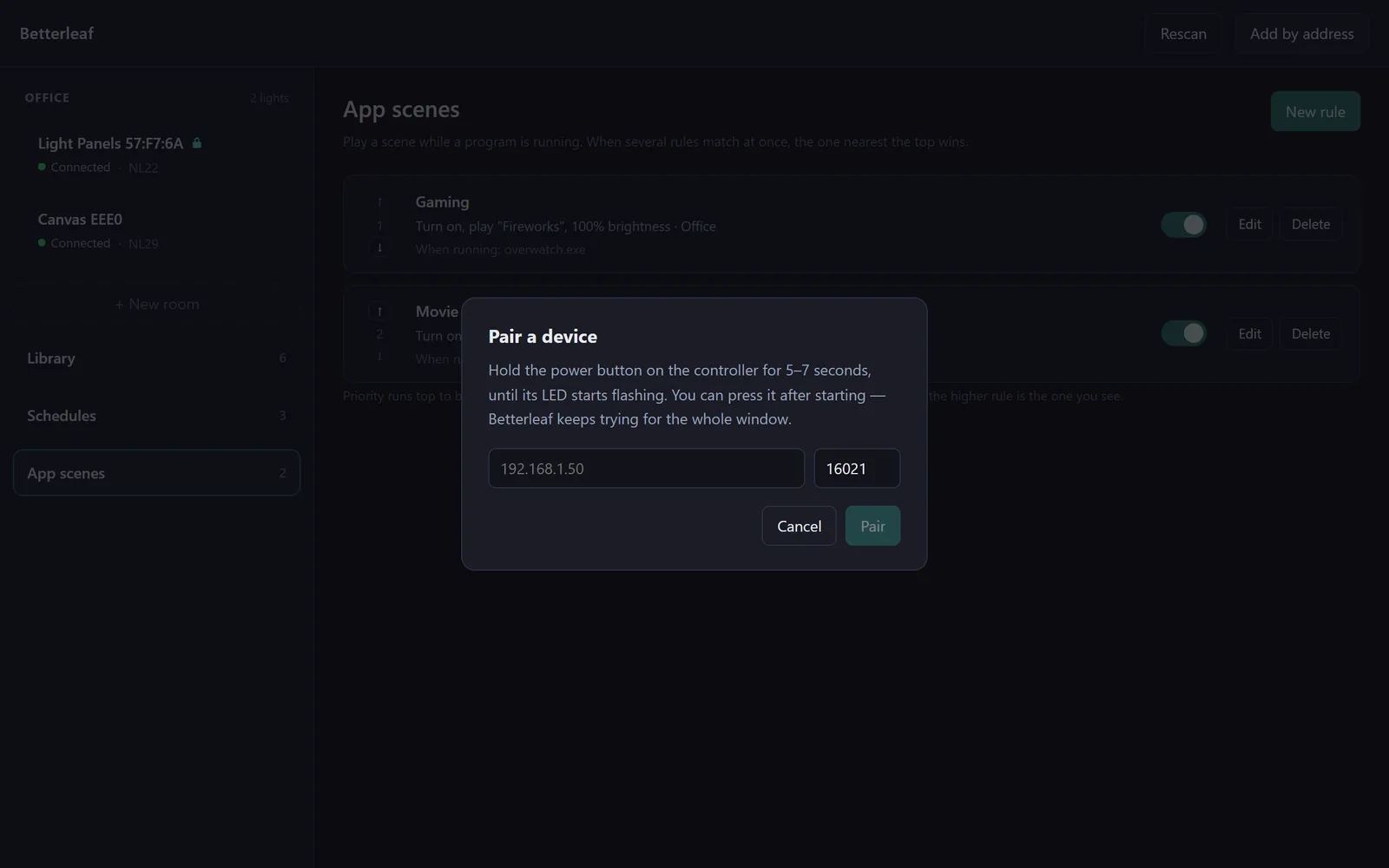
Nanoleaf controllers accept a new pairing only during a thirty-second window that opens when you hold the power button on the controller for five to seven seconds, until its indicator flashes. Betterleaf starts asking as soon as you press Pair and keeps asking for the whole window, counting down in the dialog, so you can press the button before or after; the order does not matter. Once paired, the light appears in the sidebar and its page opens. A pairing is permanent until the light is reset or you choose to forget it.
A light
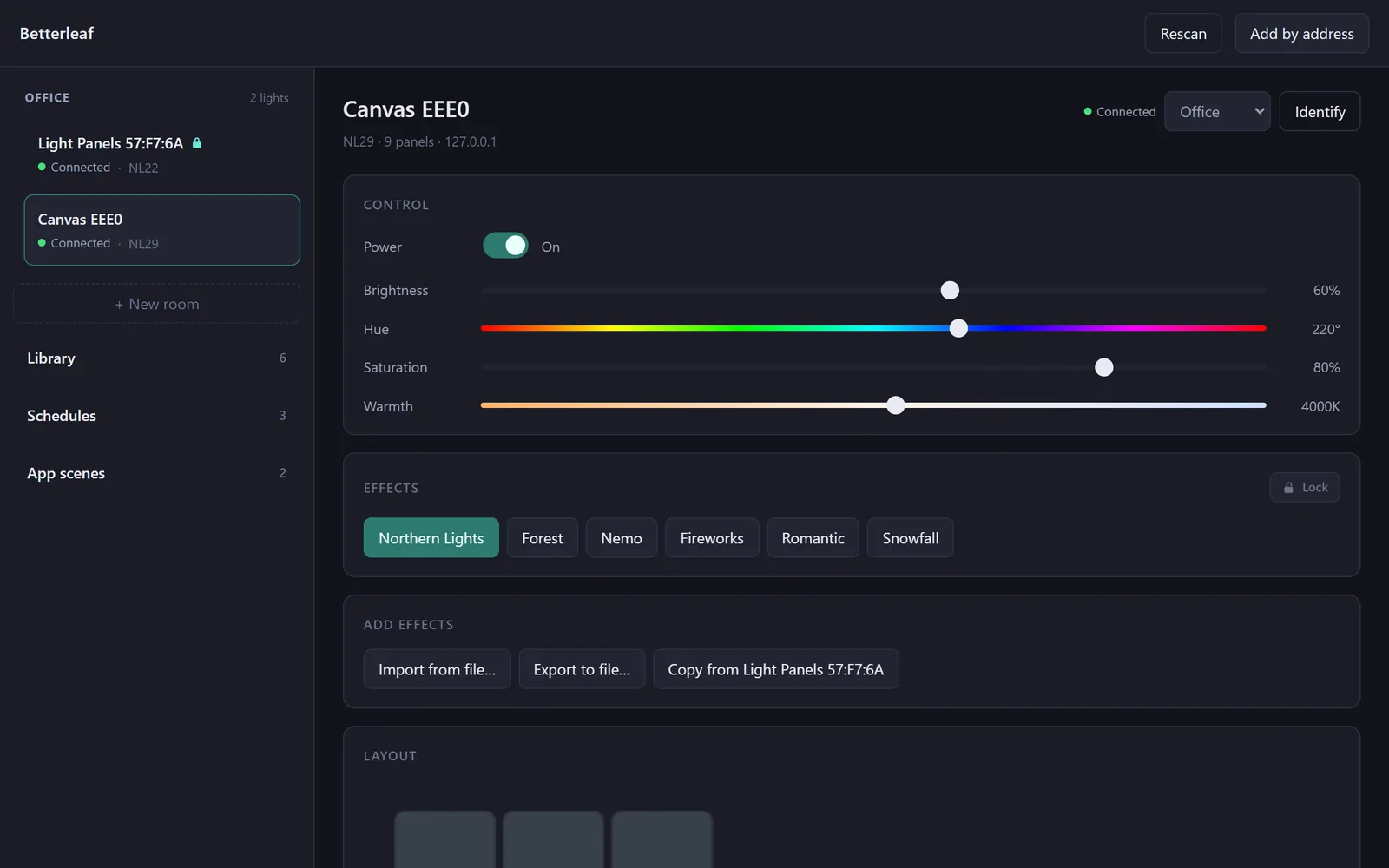
The header shows the light's name, model, panel count and address, then its status, the room it is in and an Identify button, which flashes the panels so you can tell which light you paired. The status is one of four, and each means something you can act on:
- Connected: the light's event stream is open and delivering. Nothing else earns this chip, not even a successful request.
- Reconnecting: the stream dropped, as it does after a Wi-Fi blip, and is being reopened. Controls still work; what you set is delivered as soon as the light is back.
- Unreachable: the light does not answer at its last known address. Betterleaf keeps trying and follows it to a new address if discovery finds one.
- Needs pairing: the light rejected Betterleaf's token, which happens after a factory reset. A card on the page offers Forget this device; pair it again afterwards.
Control
Power, Brightness (0 to 100%), Hue (0 to 360°) with Saturation, and Warmth (1200 to 6500 K, white light from warm to cool). Dragging a slider sends the first value at once and then only the latest, one request in flight per light, so the controller never gets a queue of stale positions to chew through. Setting a colour or a warmth switches the light out of whatever scene it was playing, as it does in the Nanoleaf app.
Effects
The chips are the scenes stored on the light, with the playing one highlighted; click one to play it. A note symbol marks scenes that react to sound, which need a microphone: Canvas and newer panels have one built in, the original Light Panels need the Rhythm module. The Lock button in the card's corner is described under Locks.
Add effects
Import from file… reads scenes from a JSON file (one scene, or the array the export writes) and writes them to the light; Export to file… saves every scene on the light to a JSON file, which is also a fine backup; Copy from another light writes every scene the other light has that this one lacks. Before writing, Betterleaf checks that the target has the motion a scene needs; a scene it could not render is skipped with the reason rather than rejected by the light with a bare error.
Layout
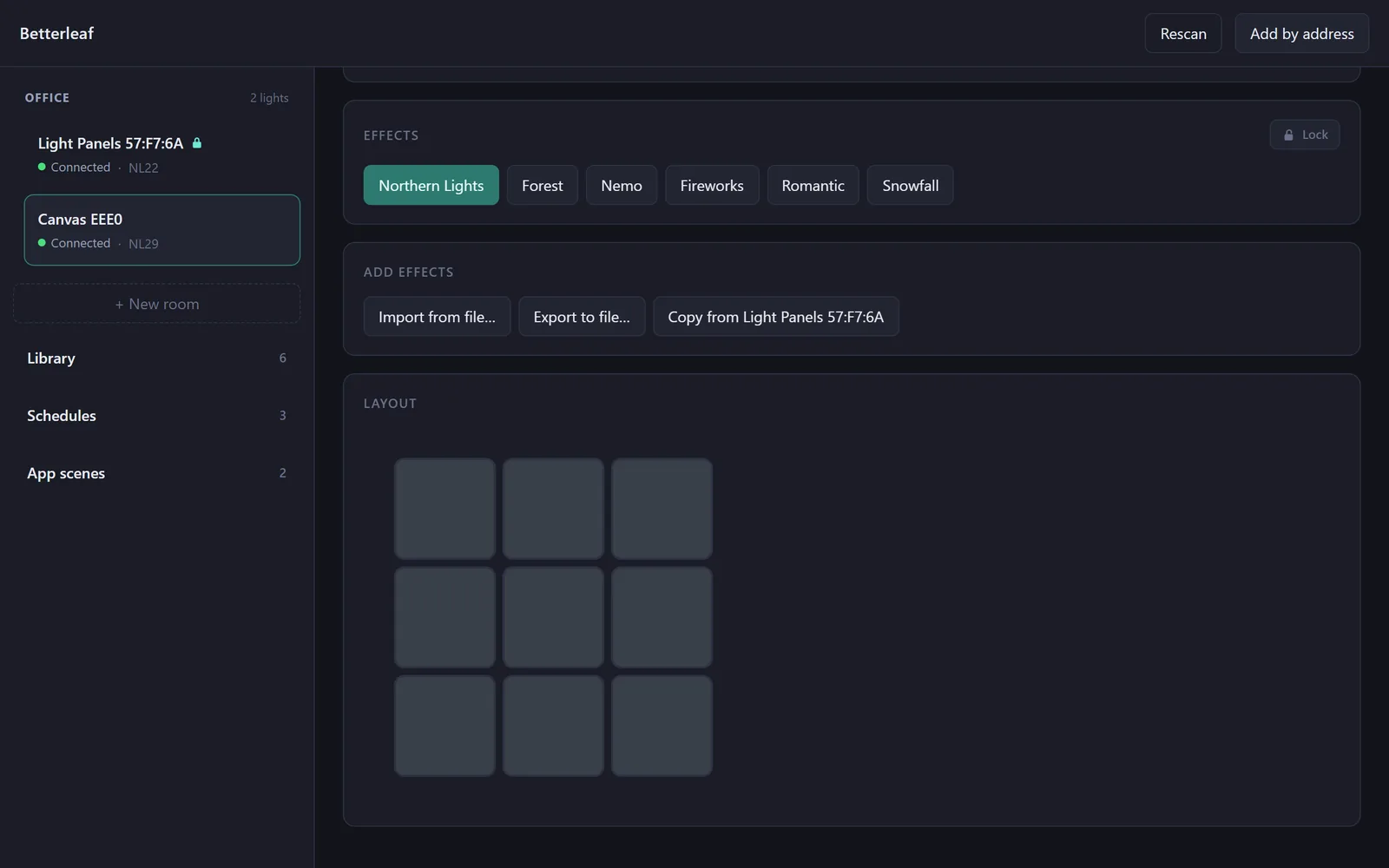
The wall is drawn as it hangs: triangles with their real orientation, squares in their grid, the Light Panels' Rhythm module left out since it has no light in it. The panels take the light's colour while it is in colour or white mode, and a neutral tone while a scene is playing, because there is no single colour to show then.
Rooms
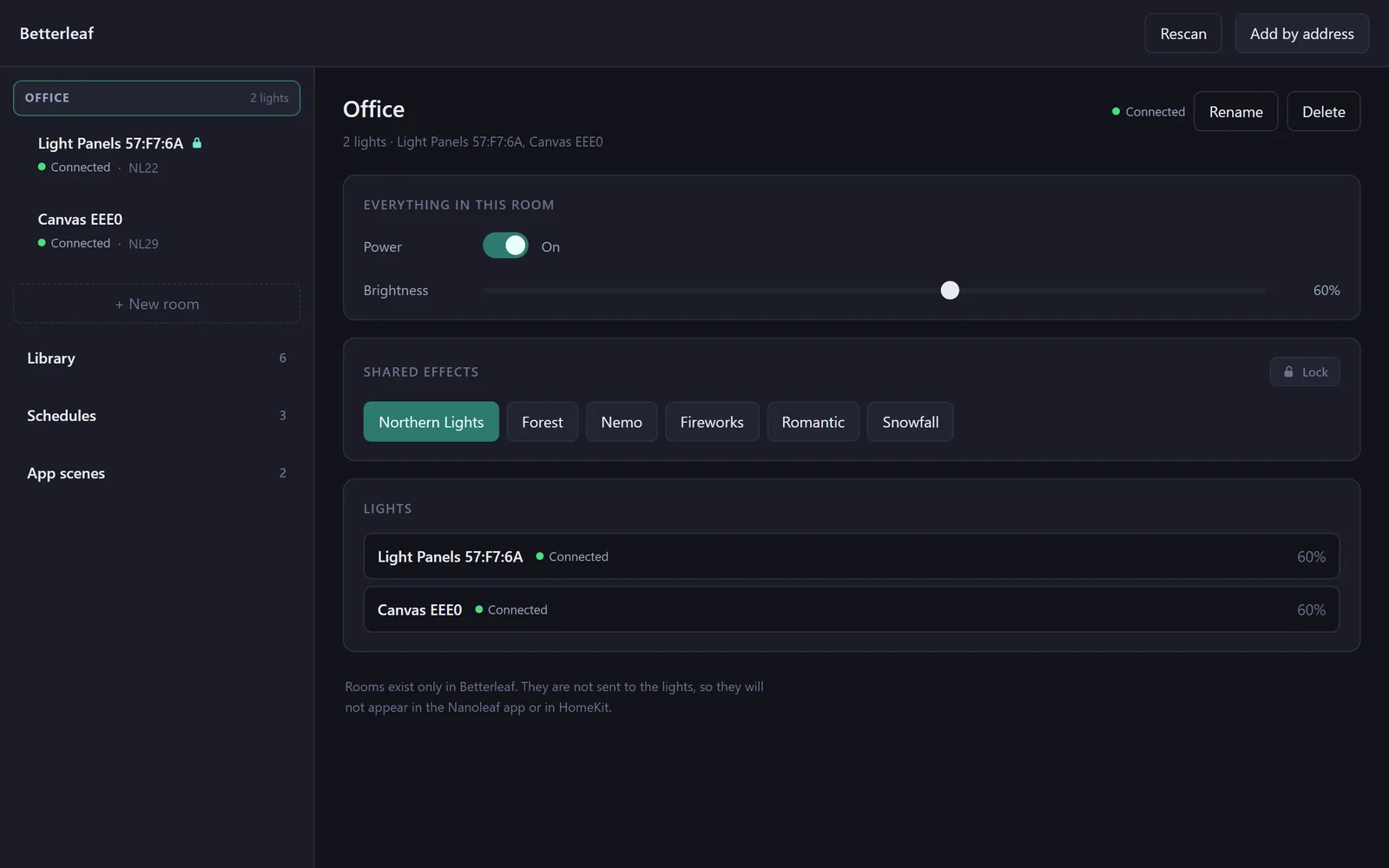
Once a light is paired, + New room appears in the sidebar. Name the room, then put lights in it from the room picker in each light's header; a light is in at most one room. The room's page drives every member at once:
- Everything in this room: the power switch reads On while any member is on, and turns them all on or off; the brightness slider shows the average of the lit members and sets them all.
- Shared effects: only the scenes every member has, because a scene one member lacks could not apply to the whole room. The playing scene is highlighted only when every member agrees; otherwise a note says the lights are showing different scenes, and picking one brings them into line.
- Lights: each member with its status and brightness; click one to open its page.
Rename (or double-click the name) and Delete are in the header. Deleting a room also removes the schedules and app scenes that pointed at it, since they could never run again. Rooms exist only in Betterleaf: nothing about them is written to the lights, so they do not appear in the Nanoleaf app or in HomeKit.
The library
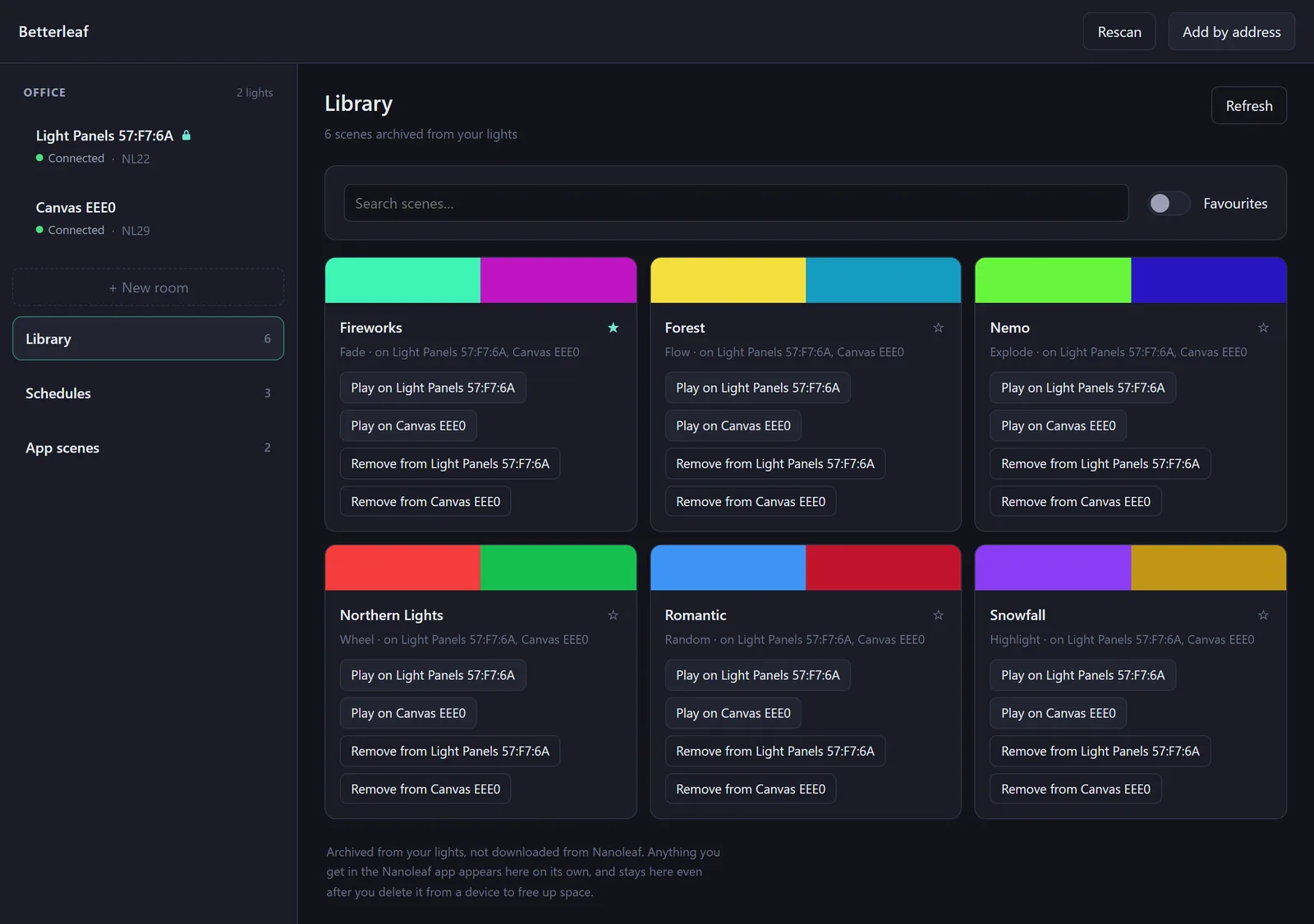
Nanoleaf's Discover marketplace delivers scenes to the lights, so the lights already hold everything you have ever downloaded. Betterleaf reads every scene off each paired light when it connects, and again whenever the light's list of scenes changes (it looks at the list every thirty seconds, and at once when a scene is selected), and keeps the full copy in a local archive. The archive outlives the controller's limited storage: a scene you delete from a light to make room stays here and can be put back.
- Search matches names and motions; the Favourites switch narrows the grid to starred scenes, and the star on each card toggles it.
- Each card shows the scene's colours, the built-in motion it is authored from (or Custom), and which lights hold it; archived only means none do.
- Play on light writes the scene to that light if it is missing and selects it. Add to light writes it without selecting it. Remove from light deletes it from the light to free a slot, and refuses unless the archived copy matches the light's byte for byte; if the scene was edited on the light since it was archived, press Refresh first so nothing is lost.
- Refresh reads every light again now rather than waiting for the next check.
Schedules
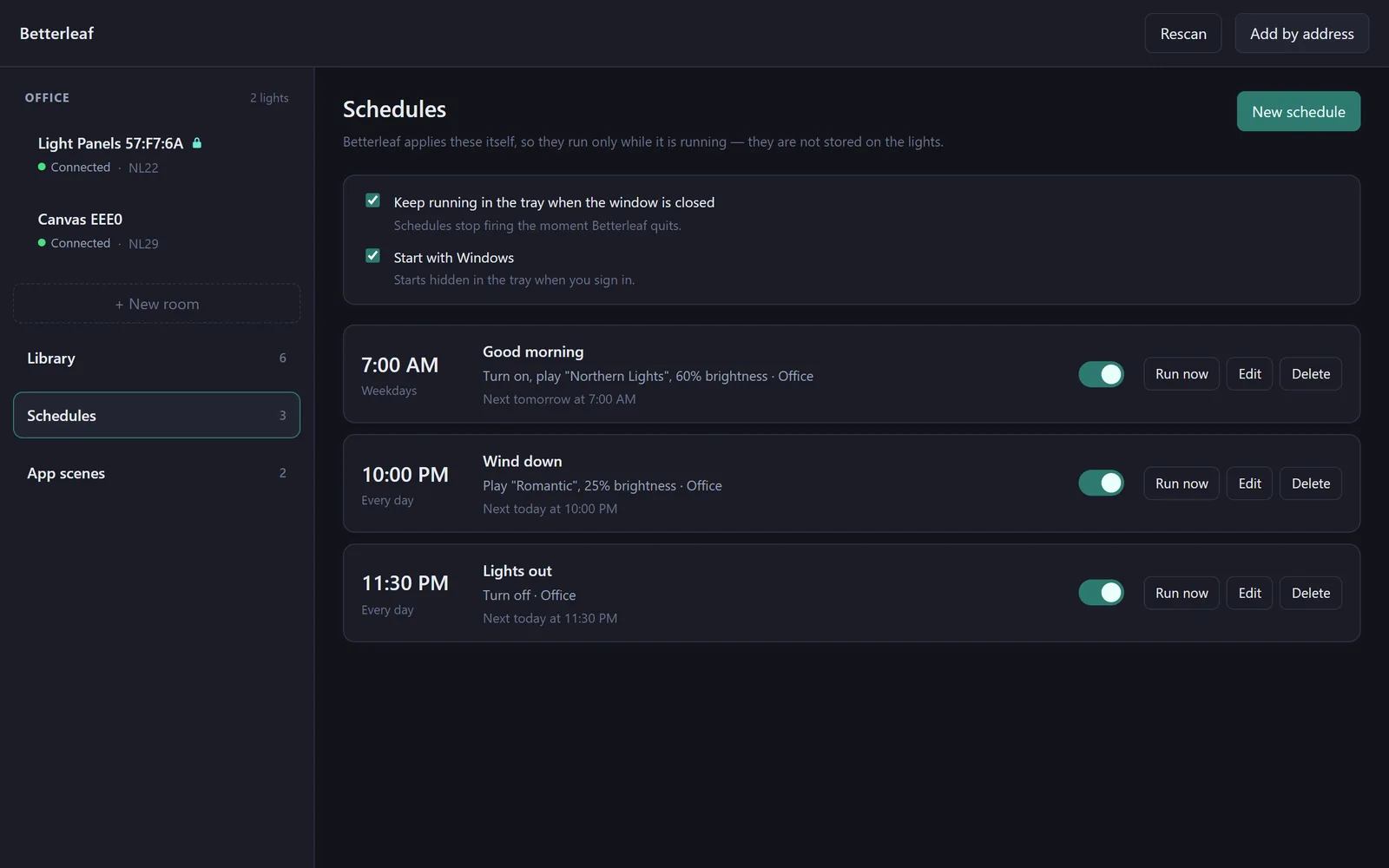
A schedule turns a room or a single light on or off at a time of day, on the days you choose, and can pick the scene and the brightness while it is at it. Betterleaf applies schedules itself: newer Nanoleaf firmware has no schedules of its own (the Canvas answers every schedule request with a 404, and the feature moved to Nanoleaf's cloud), so they run in the app, and only while it is running. That is why the two settings at the top of the view matter:
- Keep running in the tray when the window is closed: on by default. Off, closing the window quits the app, and every schedule with it.
- Start with Windows: starts Betterleaf hidden in the tray when you sign in. Offered by the installed app only; running from source, the toggle explains why it is greyed out.
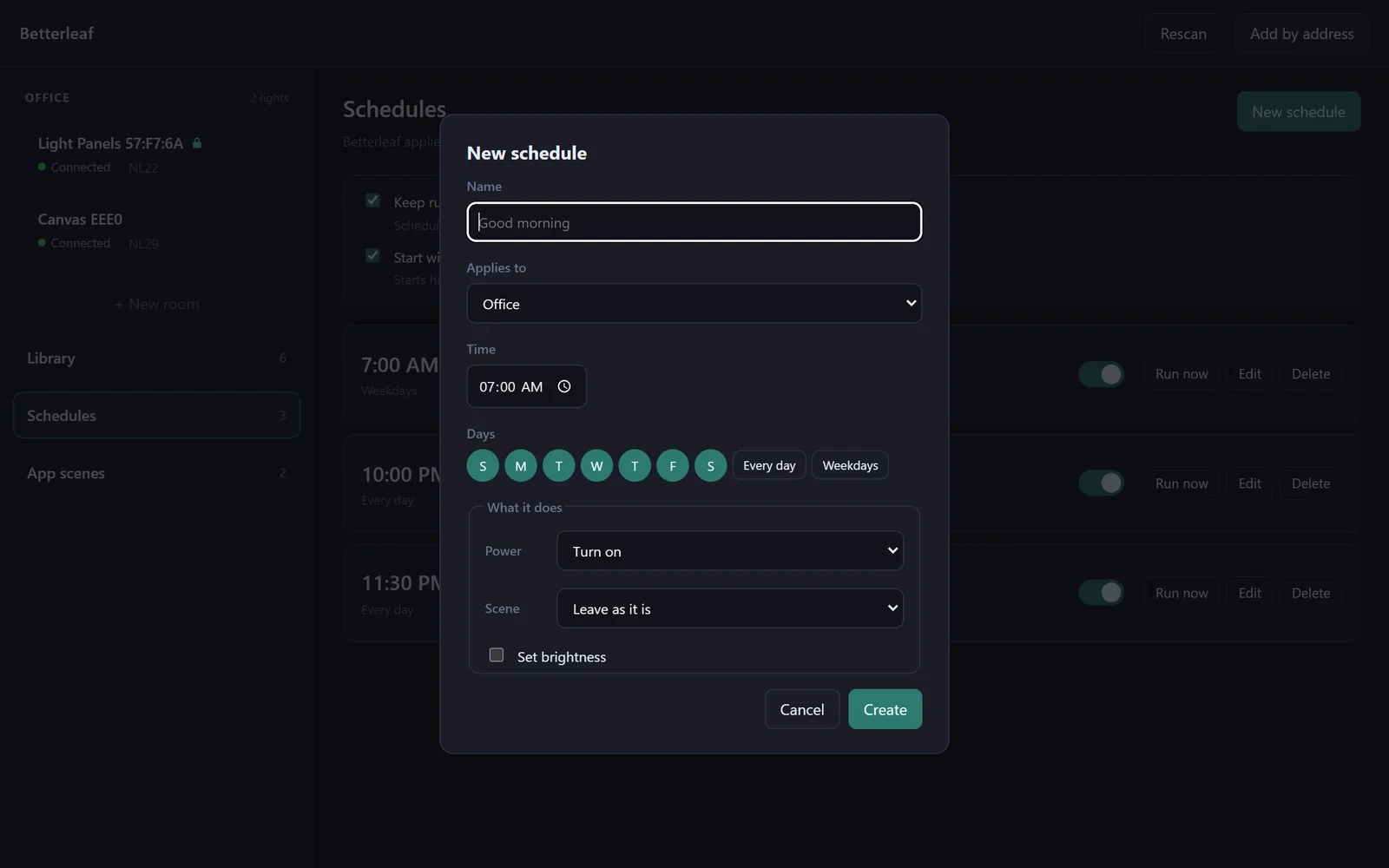
New schedule asks for a name, what it applies to (a room, or one light), a time in this computer's local time, the days (with Every day and Weekdays shortcuts), and what it does: power (leave as it is, turn on, turn off), a scene (only the scenes the target has, and for a room only the shared ones), and optionally a brightness. Turning off ignores the scene and brightness, since there is nothing to set them on. A schedule with no days or nothing to do cannot be saved.
The list is sorted by time of day, so it reads like a day. Each row shows the days, what it does, the target, and when it runs next, counting down when that is under an hour away. The switch pauses and resumes it, Run now applies its action immediately to check it does what you meant, Edit reopens the editor and Delete removes it. Creating or editing a schedule for a time already past today does not fire it at once; it waits for the next occurrence.
Some things a schedule may report in its row, and what they mean:
- missed — Betterleaf was not running: the time came while the app was closed or the PC asleep. A slot more than two minutes late is skipped, never run late; turning the lights on four hours after you wanted them is the wrong answer.
- held — the scene was locked: the light was locked, so the schedule left it alone. For a room, the unlocked members were still done.
- held — an app scene was playing: an app scene was driving the target; app scenes outrank schedules.
- last run failed: …: the light was not connected, or does not have the scene the schedule names. A firing that fails still claims its slot, so it is not retried every few seconds against a light that is not there.
Locks
The Lock button on a light's Effects card, or on a room's Shared effects card, holds what the lights are showing against schedules and app scenes: a locked light is skipped by them entirely, no scene, no brightness, no power, until you unlock it. A room's button locks or unlocks every member, and a room reads Locked only while every member is. Locks change nothing about manual control, which still works exactly as before; they exist to stop the app changing the scene behind your back, not to stop you. A locked light shows a small padlock in the sidebar, and locks survive restarts, because the thing they defend against happens hours later.
App scenes
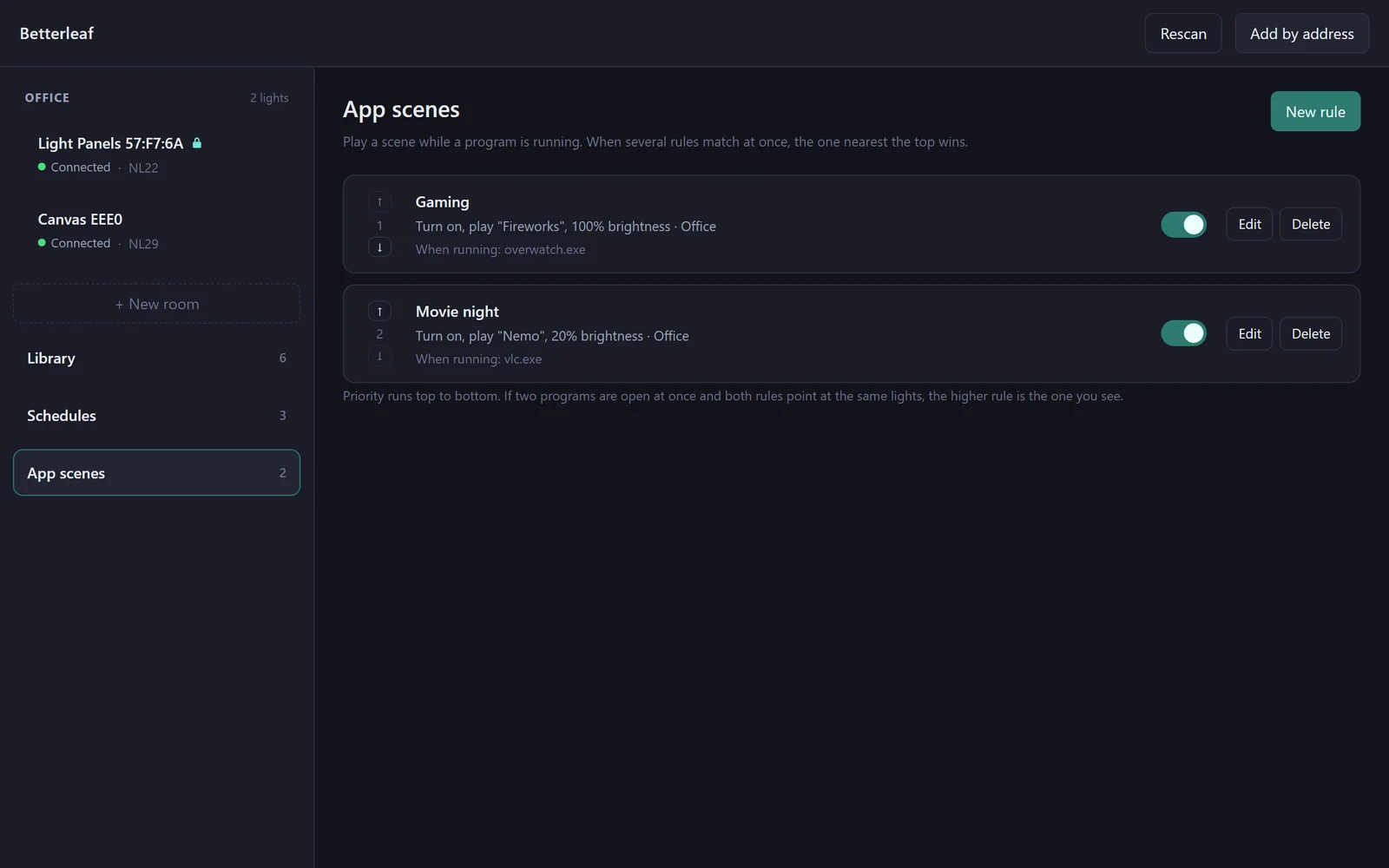
An app scene is a rule: while a named program is running, put a room or a light into a scene; when it closes, put the lights back. New rule asks for a name, the programs, what it applies to, and what to do while it runs, with the same power, scene and brightness choices as a schedule.
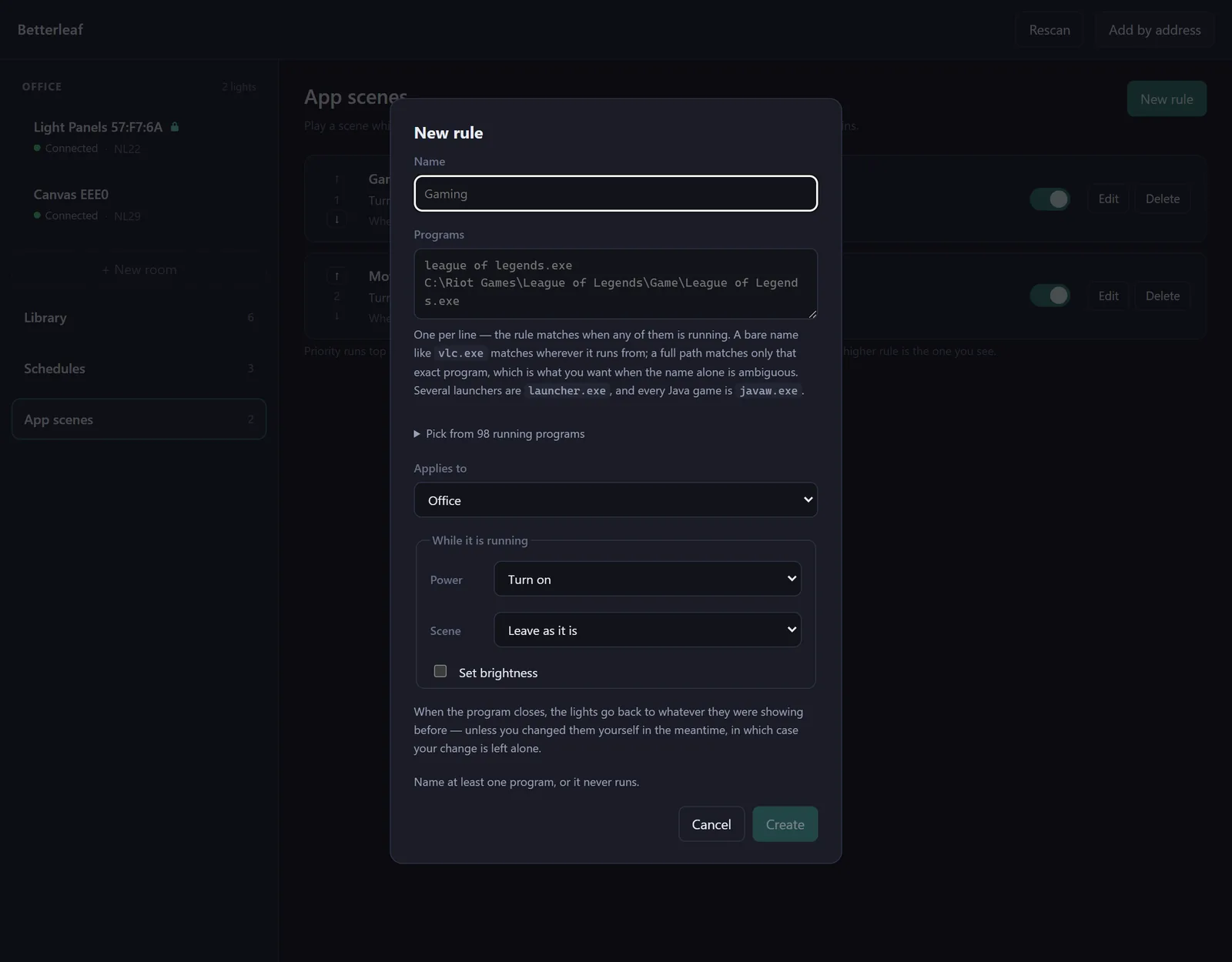
- Programs, one per line: the rule matches while any of them is running. A bare name such as
vlc.exematches wherever it runs from; a full path matches only that exact program, which is what you want when the name alone is ambiguous (several launchers arelauncher.exe, and every Java game isjavaw.exe). Pick from running programs lists what is running now to save typing; programs Windows would not give a path for are marked name only and can still be matched by name. - Running, not focused. A program counts as long as its process exists, whether or not its window is in front, so a launcher that sits in the tray all day is a poor choice for a rule.
- Priority runs top to bottom, with the arrows to reorder. If two programs are open at once and both rules point at the same lights, the higher rule wins, and the lower one's row says Running, outranked; the winning row says Playing now.
- Putting the lights back. Betterleaf notes what each light was showing before the rule took over and restores it when the program closes, but only if the light is still showing what the rule set: a scene you chose by hand while the game was open is left alone. When one rule takes over from another, the original state is what comes back at the end.
- With schedules and locks: a schedule that fires at a light a rule is driving is skipped and says so; a locked light is left alone by rules as well.
Betterleaf checks the running programs every ten seconds, and only while at least one enabled rule exists, so an install with no rules costs nothing. A rule's hold survives a restart: Betterleaf closing and reopening while the game still runs does not mistake the game's scene for the one to go back to.
Running in the tray
Closing the window hides Betterleaf to the notification area, where schedules and app scenes carry on; click the tray icon to bring the window back, or choose Quit from its menu to stop the app for real. Only one Betterleaf runs at a time, so a second launch just shows the window of the first. Both behaviours are set at the top of the Schedules view.
The command-line tool
The source repository includes a command-line tool over the same device layer, for scripting or for checking a light without the app. It is not part of the installer: run it from a checkout with pnpm cli <command>. It keeps its own list of paired lights in ~/.betterleaf, separate from the app's, and BETTERLEAF_HOME points it elsewhere. A target is a serial prefix, a model number or part of a name, and can be left out when only one light is paired.
| Command | What it does |
|---|---|
discover [--ip <addr>] | Find lights; --ip adds an address by hand |
pair <ip> [--port N] | Pair during the button window |
list, forget [target] | Show or remove paired lights |
info [target] | Model, capabilities, panel count, current state |
state [target] [--on|--off|--brightness N|--hue N|--sat N|--ct N] | Change state |
effects [target] [name] | List scenes, or play one |
layout [target] | Panel positions, and what is filtered out |
identify [target] | Flash the panels |
plugins [target], motions | The motions this light has; the built-in motions scenes are authored from |
export-effects [target] [file], import-effect <target> <file> | Save every scene to JSON, or write scenes from a file |
watch [target] | Live state, scene and touch events |
stream [target] [--seconds N] | Stream colours over UDP, the low-latency path scenes use |
save-scene [target] [name] | Write a scene onto the light permanently |
pnpm sim starts a simulator of both panel types on this computer, which is what the app's tests and these screenshots run against; the README in the repository covers it.
Troubleshooting
- No Nanoleaf devices found. Make sure the lights are powered and on the same Wi-Fi network as this PC, then Rescan. Some routers and mesh systems block mDNS and SSDP; the subnet sweep usually still finds the lights, but takes a while. Failing that, Add by address with the light's IP address always works.
- Pairing fails. The button window is thirty seconds; hold the power button until the indicator flashes, and start again if it stopped flashing. A controller that already holds its maximum number of tokens refuses new ones until it is reset.
- Needs pairing. The light rejected the stored token, which a factory reset or a token-table overflow causes. Forget the light and pair it again; its rooms, schedules and rules are removed with it, since they could not work anyway.
- Unreachable that stays unreachable. Power-cycle the controller. A light that changed address is followed automatically; one that changed network needs pairing again at the new address.
- A schedule did not fire. Betterleaf must be running at the time, in the tray at least; the light must be connected; the light must not be locked or held by an app scene; and a time already past when the schedule was created waits for the next occurrence. The row says which.
- An app scene never plays. Its program must be listed by its executable name (with
.exe) or full path; check the spelling against the running-programs picker. Some games run their real executable under a different name from the launcher. - The library is empty. Scenes are read from the lights, not downloaded from Nanoleaf: download a scene in the Nanoleaf app, or press Refresh.
- Running from source, the app exits at once with
Cannot read properties of undefined (reading 'setName'): the environment hasELECTRON_RUN_AS_NODE=1set (VS Code's terminal does this), which makes Electron run as plain Node. Launch from a plain terminal, or clear the variable.
Where your data lives
Everything the app keeps is under your Windows profile in %APPDATA%\Betterleaf: devices.json with the paired lights and their pairing tokens (encrypted with Windows' data protection for your account, so another user or another machine cannot read them), and beside it rooms.json, schedules.json, locks.json, app-rules.json, the scene archive effect-library.json and settings.json, all plain JSON. Whether Betterleaf starts with Windows is a per-user startup entry, not a file.
Nothing leaves the computer. The app's only network traffic is with the lights on your own network: no server, no account, no telemetry, no update check. New versions appear on the download page.